How to set up a 24/7 AI agent (hosting, tools, plans)
What a 24/7 AI agent is, where to run it, which tools and plans work, and how I set mine up on an old laptop.
My AI agent reads my newsletters and writes me a digest every morning. I can message it from my phone. It runs on an old laptop at home.
You don’t need a laptop like mine. Here is what a 24/7 agent is, where to run it, which tools work and which plan to pay for. (I haven’t tried every option below. I’ll say which ones.)
Quick guide: no tech wanted and no hosting, try a ready-made agent (dots isn’t in the EU yet) or Claude’s cloud tasks. A computer you own and some curiosity, run Claude Code on it (that’s what I do). Want to rent a server instead, that works too (I haven’t tried it).
What “24/7” actually means
An agent is an AI that does the work, not just chats about it. For it to work around the clock, you need four things:
- A machine that stays on. Your laptop, a rented server or the provider’s cloud.
- A tool that lets the AI use files and apps. This is called a harness. Claude Code is one. Without it the AI can only talk.
- Your files. The notes, documents and rules the agent works with.
- A trigger. A schedule (“every morning at 8:24”) or a message from your phone.
Where it can run
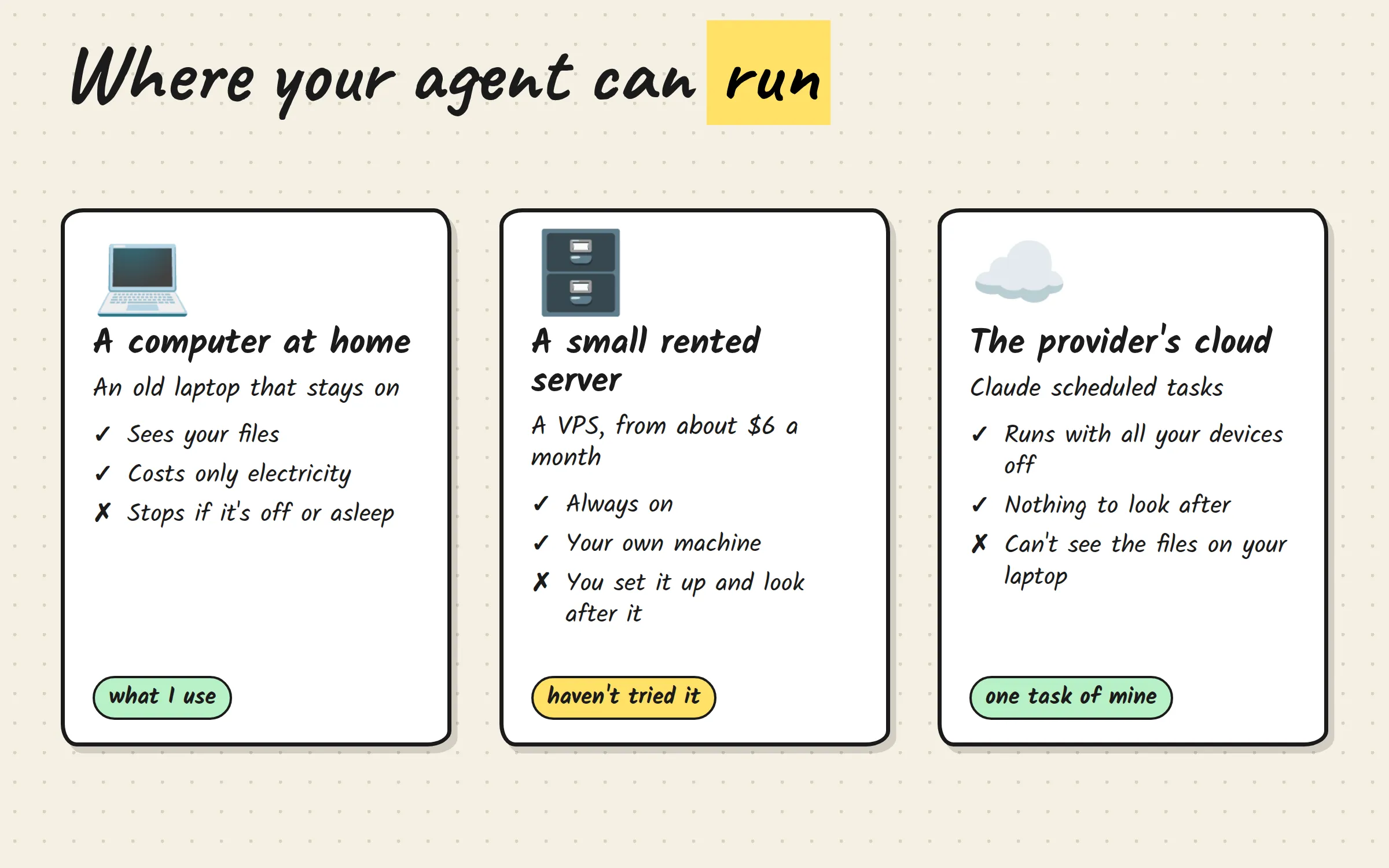
- A computer at home. Mine is an old Ubuntu laptop that stays on. It costs electricity and I look after it myself. I turned off sleep on it, so it doesn’t nap.
- A small rented server. Often called a VPS. For an agent tool like OpenClaw, guides say 2 vCPU and 2 GB of memory is enough, from about $6 a month (Atomic Bot, Kilo). Those are hosting vendors, so check the prices yourself. I haven’t done this one.
- The provider’s cloud. Claude can run scheduled tasks on Anthropic’s servers, so your computer can be off.
Where the agent runs decides what it can touch. I use a mix, and each side has a cost:
| Where | Good | Careful |
|---|---|---|
| Cloud task | Runs even when all my devices are off | Can’t see the files on my laptop |
| Laptop task | Edits the notes that live on it | Stops when the laptop is off or asleep, and the Claude app has to be open |
| Both at once | None. Avoid it | Two machines editing the same notes create conflict files |
Most of my scheduled tasks run on the laptop, because they edit notes that live there. One task runs fully in the cloud, because it needs nothing from the laptop. Pick per task: if it needs your files, it runs where your files are.
Don’t want to host anything? Ready-made agents
Two big companies now sell an agent that lives in their cloud:
- Grok Bot from xAI, in beta since August 2026. Your bots share one cloud computer. It comes with SuperGrok and Cursor plans (the tiers changed during the beta). I couldn’t find out if it’s available in the EU.
- dots from OpenAI, launched in late September 2026. Each dot gets its own cloud computer, and your first one is included in the Pro and Business Premium plans. It isn’t available in the EU, Switzerland or the UK at launch. Of course.
The details come from news and comparison sites, such as this comparison. I couldn’t open xAI’s page, and OpenAI’s help page on dots blocked me, so check both before you decide.
Nothing to install or host, but your files and the agent’s memory live on their side. I haven’t tried either one.
Which tool, and does your subscription work in it?
The big ones are Claude Code (Anthropic) and Codex (OpenAI). Then there are open source tools like OpenCode and Pi. The tool is free to download and not tied to one company, but the AI model behind it still costs money. I use Claude Code. I haven’t tried the open source ones yet, but I plan to.
The model is where the subscription question comes in. Claude and ChatGPT plans mostly stay in their own companies’ tools. A few others don’t:
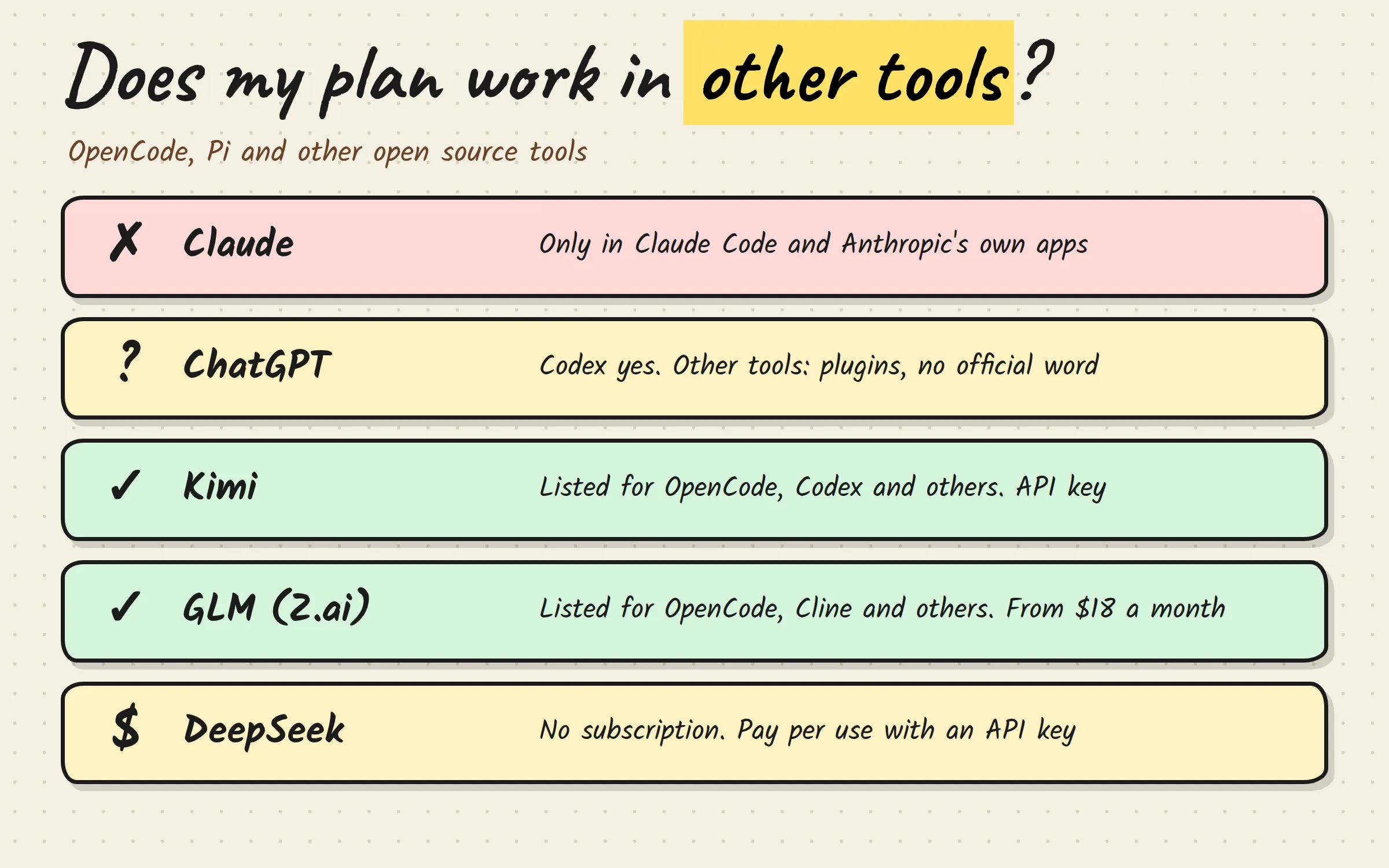
| Plan | Works in open source tools? |
|---|---|
| Claude (Pro, Max) | No. Anthropic says subscription sign-in is for Claude Code and its own apps, and that others can’t route requests through it |
| ChatGPT | Codex yes. In other tools it works through community plugins, and I found no official OpenAI statement |
| Kimi | Yes. Kimi’s help page lists OpenCode, Codex and Hermes Agent. You set them up with an API key from your membership. Don’t fake the app, Kimi’s docs warn against it |
| GLM (Z.ai) | Yes, its coding plan lists OpenCode, Cline, Claude Code and Codex. It starts at $18 a month |
| DeepSeek | I found no subscription. Its docs say you can use DeepSeek as the model in tools like OpenCode and Claude Code, paid per use with an API key |
Plans and terms change fast, so check the links before you pay.
The easiest start: Claude Code
- Make a folder and open Claude Code in it. (Install steps. You need a Claude account.) The agent can read and edit everything in that folder.
- Write a short rules file called
AGENTS.mdat the top of the folder. It tells the agent where things are and what to leave alone. This is a shortened version of mine:
# Vault guide for AI agents

This is my notes folder. Plain Markdown, synced between my devices.

## Map
- `Daily Notes/`: one note per day. My inbox, brain dumps go here.
- `Business/`: my side business. It has its own AGENTS.md: read it before working there.
- `Archive/`: read-only. Don't edit.

## Editing rules
- Edit only inside the folder of the task you were given. Ask before changing anything else.
- Don't delete, move or rename notes without asking.- Write one small job as a step-by-step file. A workflow is a checklist for the agent, so you don’t retype the same prompt.
- Add a trigger. For a schedule, open the Claude desktop app, go to the Code tab, click Scheduled and then New task. Give it a name, a short prompt and a time, and choose whether it runs only on your computer or in the cloud (Anthropic docs). For your phone, use Remote Control, a mode that lets you continue the same session from the Claude app (docs). Both work with a Pro plan.
When the agent does something you didn’t want, add one line to the rules file. That is also your safety net: mine says to ask before changing anything outside the task’s folder and never to delete or rename notes without asking.
How I set up my Obsidian vault
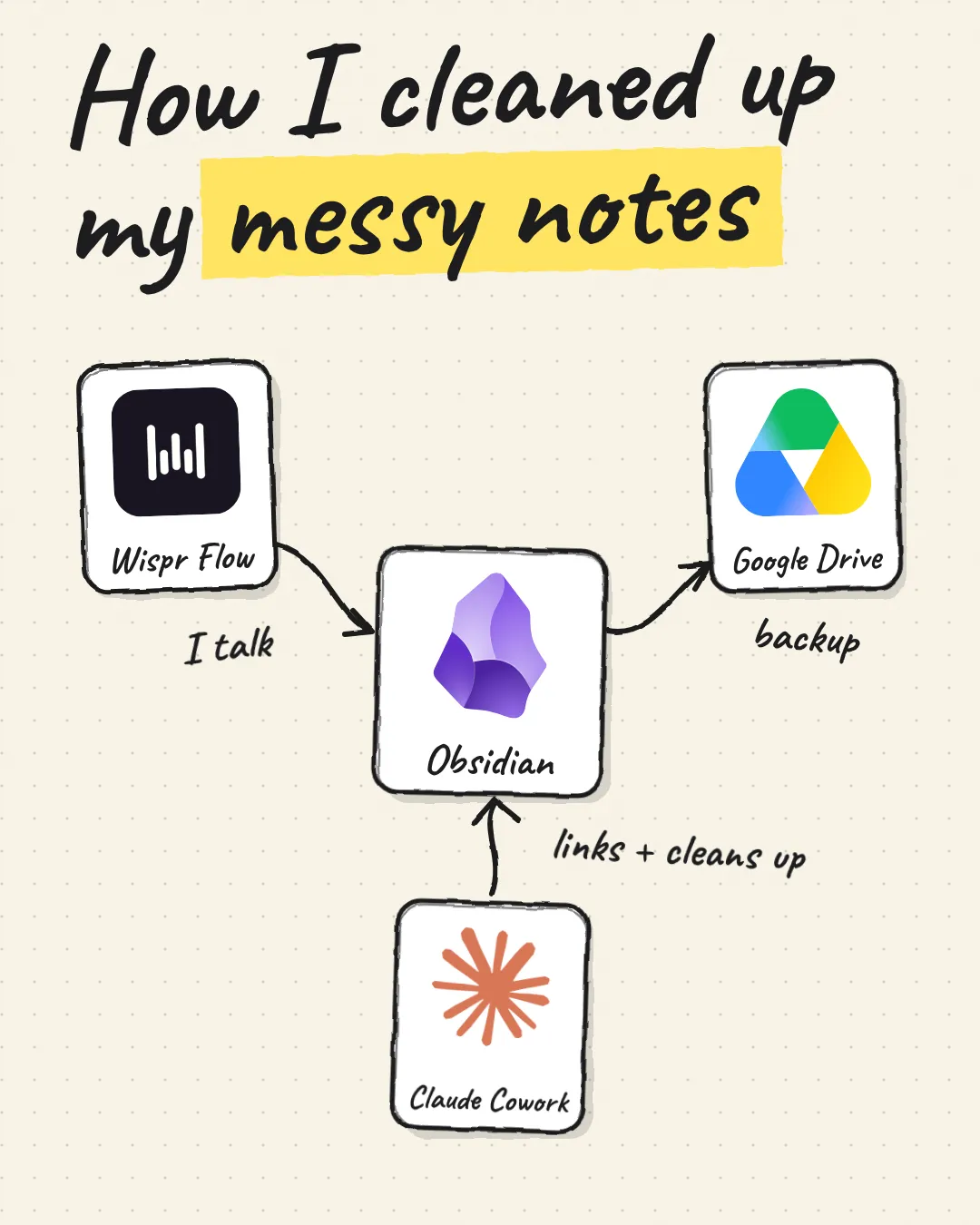
My folder is an Obsidian vault: notes in Markdown, which is just text with a few symbols. My strategy, drafts, ideas and daily brain dumps are all in it. (My notes have always been a mess. The folder is where the mess lives.) Syncthing copies the folder between my PC, phone and laptop.
The laptop runs Claude Code in that folder all the time. I asked Claude Code to set that up. It created a small background service (it’s called systemd, you can look it up) that restarts Claude Code if it ever stops, and I reach it from my phone with Remote Control. It runs in auto mode, which lets it work without asking me about every step.
The Raspberry Pi 3 can’t run Claude Code, so it just keeps a copy of my files. Useful as a backup, useless as an agent.
The scheduled tasks do the repeating jobs:
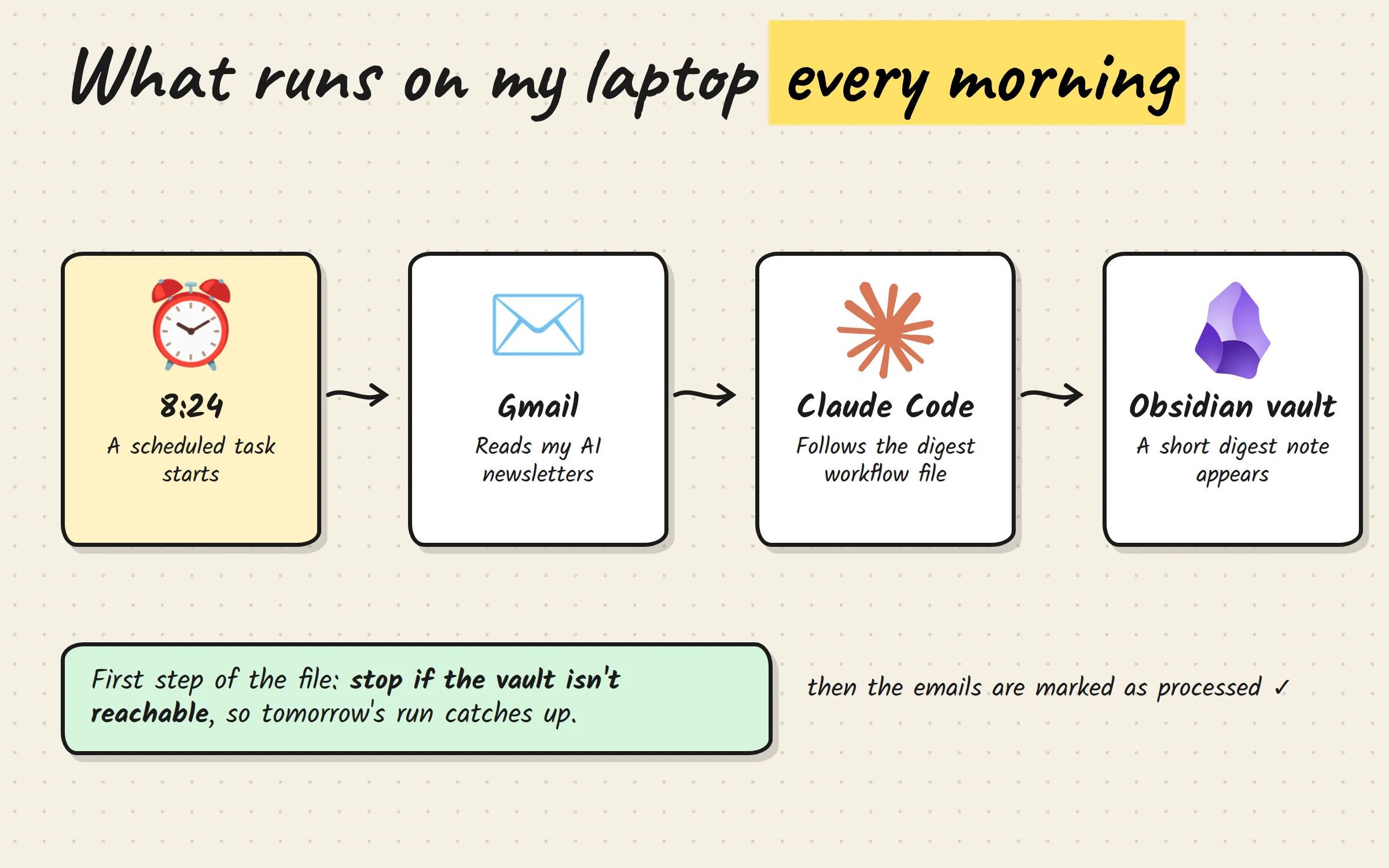
- Every morning at 8:24, a task reads my AI newsletters in Gmail, writes a short digest note in the vault and marks the emails as processed.
- Every week, one imports my meeting notes and one tidies and links my notes.
The task prompt is short. It says who I am, where the vault is and “follow .agents/newsletter-digest.md step by step”. The real instructions live in that file, in the vault, where I can edit them. The first step of the file is a safety gate: if the vault isn’t reachable, stop before touching Gmail, so tomorrow’s run catches up.
One more agent I built plays me and reviews my drafts before I see them. That one gets its own article.
Which plan to pick
- To start, and for simple jobs (a digest, tidying notes, small edits): the Claude Pro plan is enough. It costs $20 a month, or $17 if you pay for the year (Anthropic pricing).
- For lots of coding: Pro runs out. Claude Code shares one usage limit with the normal chat, so long coding sessions hit it first. The next step is Max, from $100 a month, or paying per use with an API key.
- If you try open source tools, check first that your plan works in them (see the table above). Otherwise you pay per use.
The total cost of a setup like mine: a laptop you already own, electricity, and the plan you pick.
Start on Monday
- Pick one job that is just reading and summarizing (see the test below).
- Make a folder, install Claude Code and write the short rules file.
- Write that job as a workflow and run it once by hand.
- Only then add a schedule.
A quick test for you: which job do you do every morning that is just reading and summarizing? Start there.